
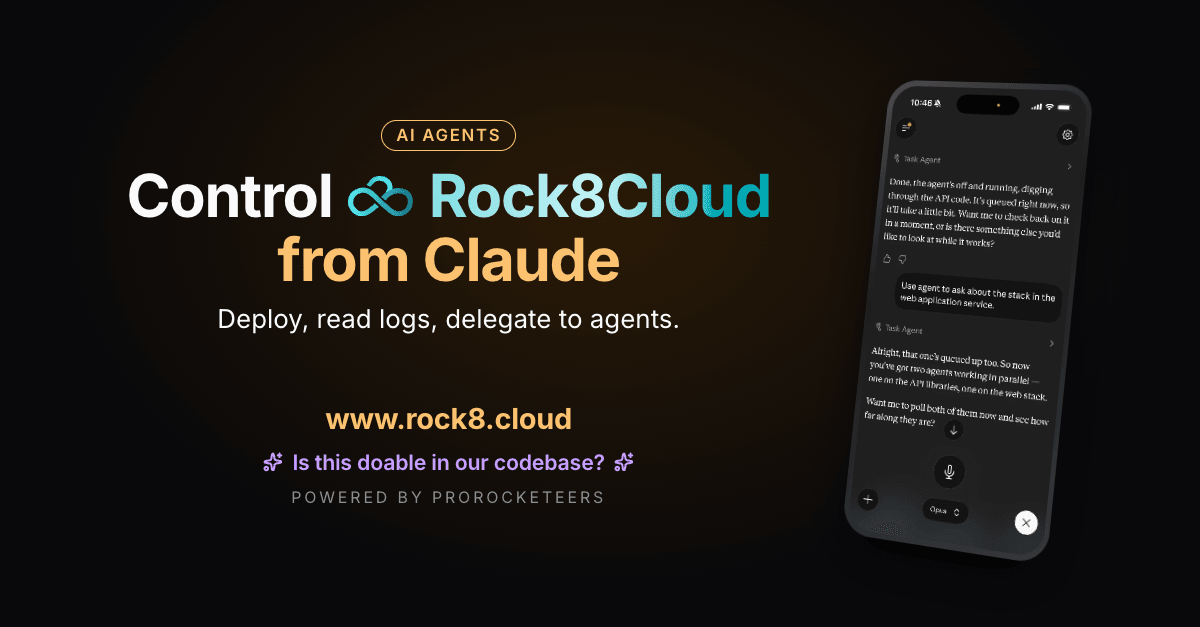
Claude writes the code, Rock8Cloud gives it a starting stack and real hosting, in the EU.
What you need#
- Claude on the web, Claude Desktop or the mobile app, on any plan. On Team and Enterprise plans an owner enables connectors first. Or Claude Code in a terminal.
- A Rock8Cloud account with at least one project. You sign in with GitHub during setup.
Connect the Rock8Cloud MCP to Claude#
Both paths reach the same server and end with the same GitHub sign-in.
- Open the listing. Go to claude.ai/directory/rock8cloud, or in Claude open Customize → Connectors, click + and search for Rock8Cloud.
- Connect. Click Connect, sign in with GitHub and approve the access. No API key, no token in a config file.
The connector follows your Claude account to every Claude app, phone included.
claude mcp add rock8cloud --transport http https://app.rock8.cloud/mcpThen type /mcp in Claude Code, pick Rock8Cloud and sign in in the browser. Add --scope user to have it in every project on the machine.
What you can do with it#
Every tool, with example prompts, is on the MCP primitives page. Some ideas to start with:
Build a proper prototype from a verified blueprint
Start from a verified repository with a local stack, spend tokens on your idea instead of scaffolding, and get a live URL from the first deploy.
Prototype a team dashboard from a blueprint
Ship your repo with its database
Build, database, env vars and a live URL in one step. Every push redeploys, and your own domain is one more prompt.
Deploy acme/shop on Rock8Cloud with a Postgres database
Find out why a deploy failed
Build and runtime logs read straight into the chat, so the fix starts from the evidence, not a guess.
Why did the last deploy of the API fail?
Add a database, cache or storage
PostgreSQL, Dragonfly (Redis) or S3 storage, linked into your service as env vars.
Add Redis to the API and link it
Share your work as a page
Reports, previews and summaries get their own rock8cloud.page link, public or password-protected.
Publish this summary as a page for the team
Hand a task to a cloud agent
An agent works in its own sandbox with its own copy of the repo and comes back with a pull request and a preview.
Have an agent fix the flaky checkout test
Check what is running
The live state of every service, its uptime, and CPU and memory against the limits.
What is running in production, and is anything close to its limits?
Catch problems before they ship
Critical dependency vulnerabilities and code review findings, with the fix to apply.
Any critical vulnerabilities or review findings on my branch?
Good to know: deploys come from GitHub, so install the Rock8Cloud GitHub App when Claude asks and push before you deploy. Anything billed is confirmed with you first.
Troubleshooting#
The connector will not authorize. Finish the browser sign-in rather than closing the tab. Disconnecting and connecting again under Customize → Connectors starts a fresh sign-in.
Connect is greyed out. On a Team or Enterprise plan, an owner has to enable connectors first.
Claude says it has no tools for this. The chat started before the connector was added, or the tool is turned off in the connector settings. Start a new chat.
Claude answers about the wrong project. Name the organization or project in the question.
Nothing shows up on mobile. Connectors sync with the account, not the device. Check the connector shows as connected on the web or in Claude Desktop, signed in to the same account.
ChatGPT and Codex, Cursor, Zed and IntelliJ connect to the same server through their own config.
Next: talk to your codebase from your phone · let your agent delegate work to cloud agents · debug a failing deploy from your agent.
