

A PostgreSQL you provision on Rock8Cloud is network-isolated. It answers services inside your project and nothing else, and it never gets a public address. That is the right default for production data, and it is also the moment you want to look at a row and cannot.
The fix is to put the client inside the project. pgweb is a browser-based SQL client that Rock8Cloud deploys as a one-click application. It sits next to your database, talks to it over the project’s private network, and gives you a URL with a login. Your data stays where it was. Only the browser window is new.
1. Add pgweb to the project#
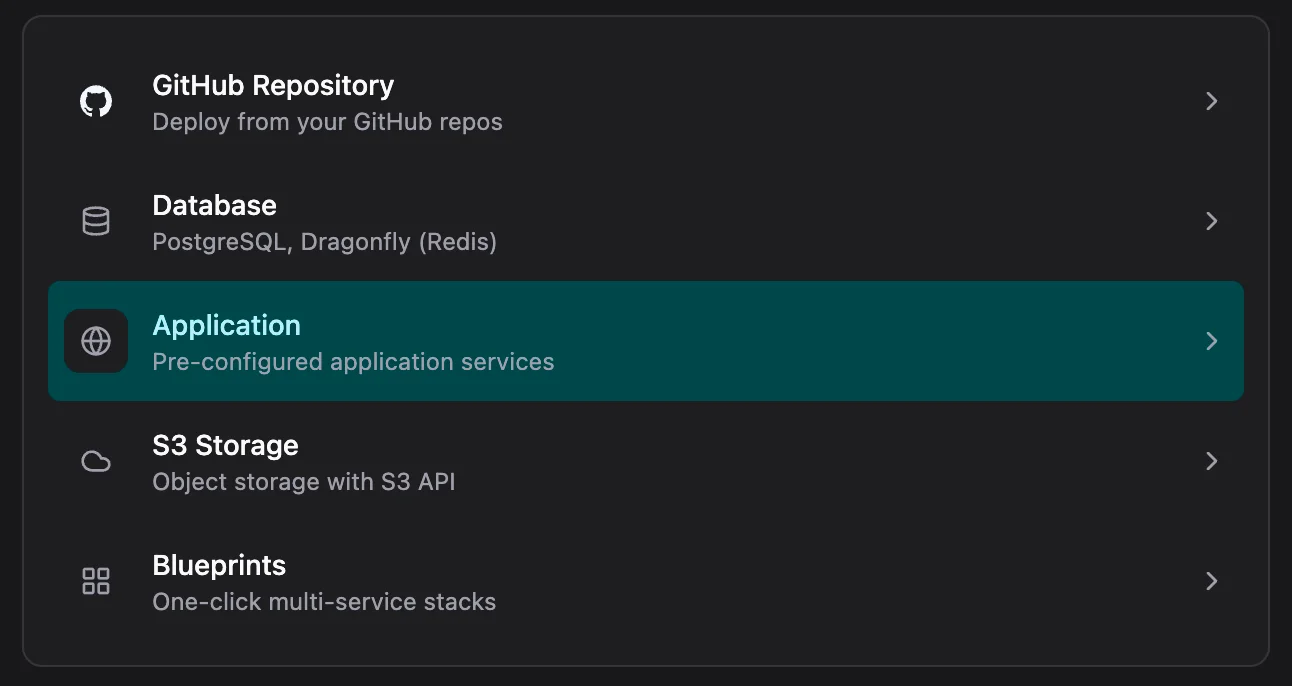
Open the project that holds the database and click Add Service. pgweb is under Application, the catalog of pre-configured services that deploy from a ready-made image instead of from a repo.
2. Link it to your database#
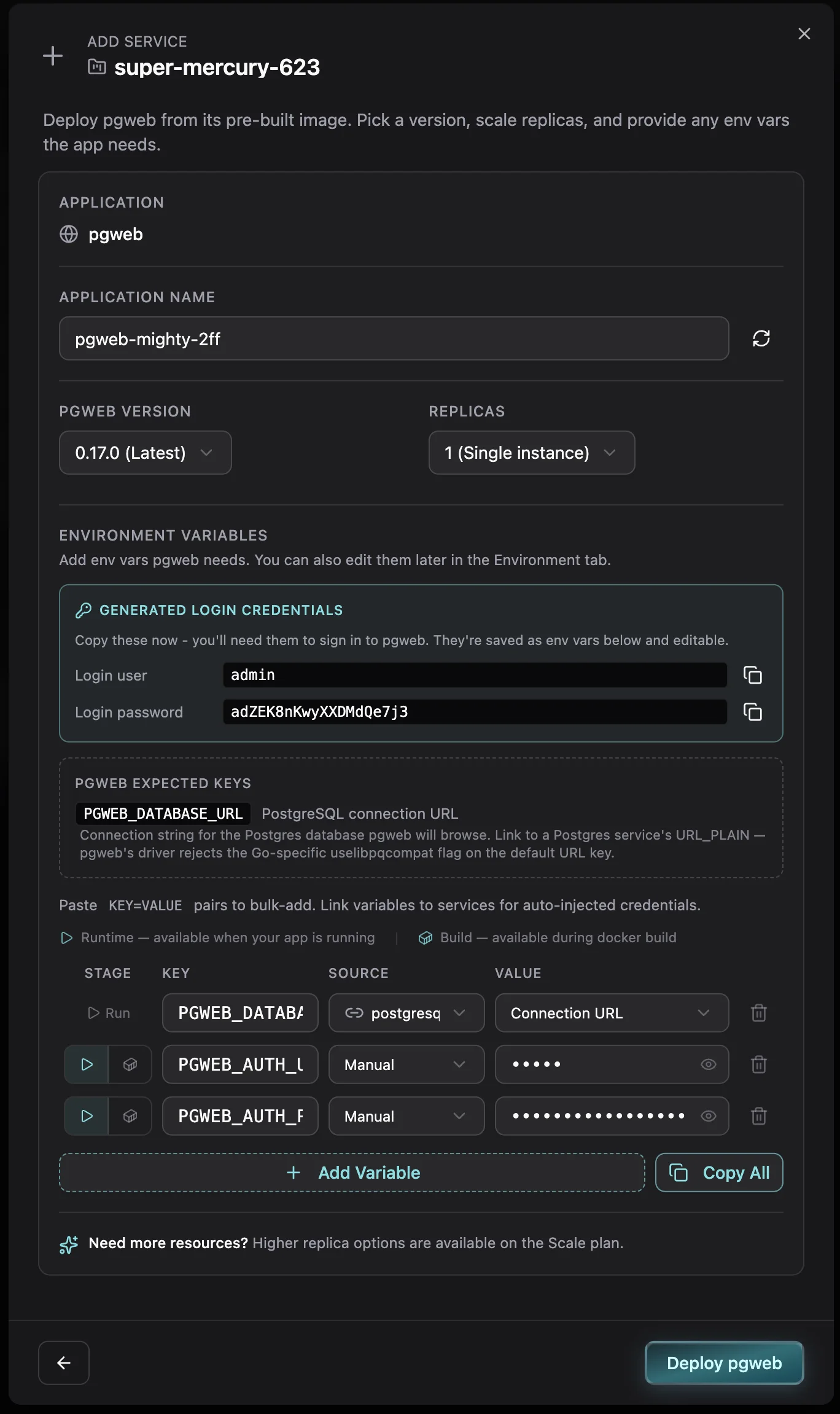
The panel asks for three things and prefills all of them.
Version and replicas. pgweb 0.17.0 and a single instance is what you want. One person queries at a time and there is no state to spread.
Login credentials. Rock8Cloud generates a user and a password for you and saves them as the PGWEB_AUTH_USER and PGWEB_AUTH_PASS environment variables. Copy the password now. They are ordinary variables afterwards, so you can change either one later in the service’s Environment tab and pgweb redeploys with the new login.
The database. PGWEB_DATABASE_URL is the connection string pgweb browses. Point it at your PostgreSQL service and pick Connection URL. Use the plain one, not the libpq-compatible variant: that one appends uselibpqcompat, a Go-specific flag pgweb’s driver rejects.
Pro tip:the link is live, not a copy. Rotate the database password and pgweb picks up the new connection string on its next deploy, with nothing to paste.
3. Deploy#
Hit Deploy pgweb. It comes up as an application in your project, next to the database it browses, with its own public URL.

4. Sign in#
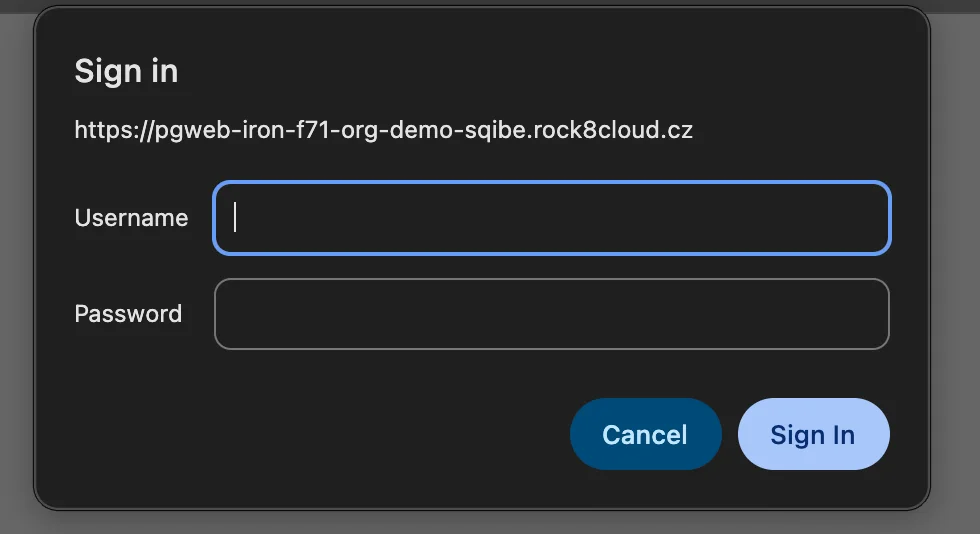
Open the URL. The browser asks for the credentials from step 2 before anything loads.
5. Browse, query, export#
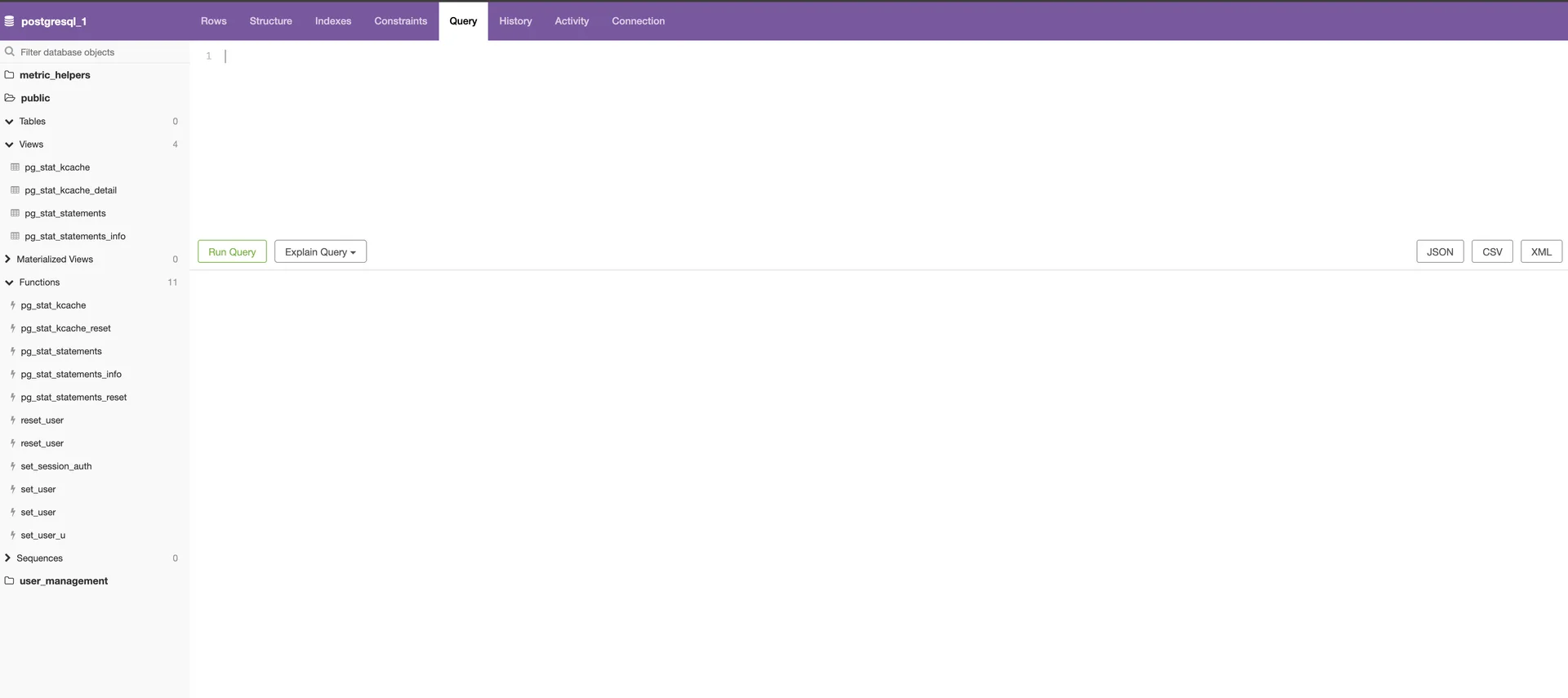
You land on the database you linked, with its schemas in the sidebar and a tab row across the top.
- Rows - read and filter table data.
- Structure, Indexes, Constraints - the shape of a table without writing catalog queries.
- Query - run SQL, with Explain Query next to it for a plan.
- History - every statement you ran this session.
- Activity - what the database is doing right now, which is where you look when something is slow.
- JSON, CSV, XML - export the result set you are looking at.
What pgweb can and cannot reach#
The service is locked to the connection you linked. Multiple sessions are off and the session is pinned to that one database, so whoever signs in sees that database and nothing else in your project.
Everything else about it is a normal service. It has an Environment tab, Logs, and the same deploy history as your app.
Treat the URL like production access#
pgweb’s URL is public and the login is the only thing between the internet and your data, with full write access behind it. So:
- Keep the generated password. It is long and random on purpose. If you replace it, replace it with something as strong.
- Rotate it from the Environment tab whenever someone who had it moves on.
- Stop or delete the service when you are done. A database browser that nobody is using is a door nobody is watching. Adding it back is the same two minutes.
Full reference and troubleshooting in the pgweb docs.
Related: Provision PostgreSQL · Provision Dragonfly (Redis) · S3 object storage.
